How to send voice messages, photos, documents and more
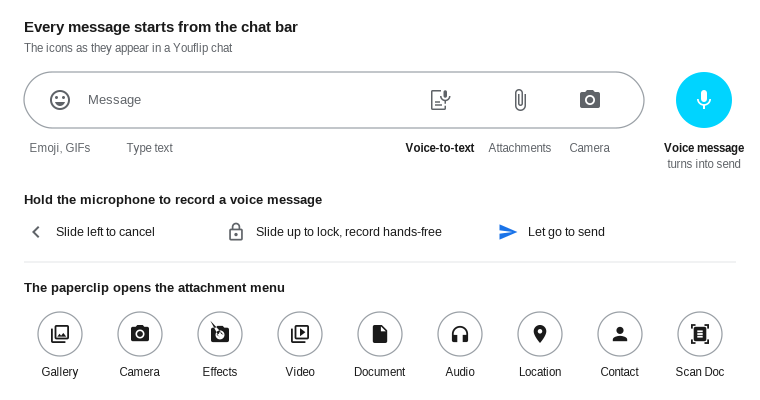
Everything is sent from the bar at the bottom of a chat.
Text: type and tap the send arrow.
Voice message: tap the microphone to record, then send. Or hold the microphone and let go to send; slide left to cancel, or slide up to lock and record hands-free.
Voice-to-text: tap the voice-to-text button in the message box and speak. Your words are typed for you to check before sending.
The paperclip opens the attachment menu: Gallery, Camera, Effects, Video, Document, Audio, Location, Contact and Scan Doc (scan paper with your camera).
How long media stays on our servers
| Message | What happens to it |
|---|---|
| Text | Encrypted while it travels; only the people in the chat can read it |
| Voice message, photo, video, document | Kept on the phones in the chat; deleted from our servers after delivery |
| Location | Shared only when you choose to send it |
| Contact | Shares only the contact you pick; only share someone’s details with their permission |
Still need help? In the Youflip app, go to Settings → Help → Contact Customer Care to chat with the official Youflip Support account.