How to add something to your Vault
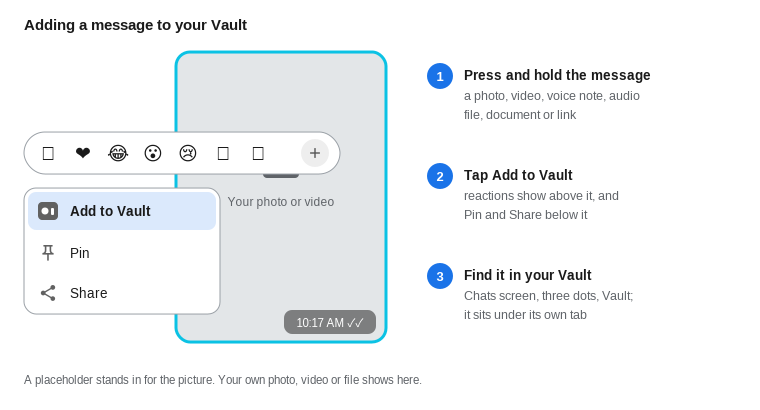
In a chat, press and hold a photo, video, voice note, audio file, document or link and tap Add to Vault. You can also tap the Vault icon in the bar at the top.
To add files straight from your phone, open the Vault, tap + and choose Take photo, Record video, Photos and videos, Documents or Audio files.
Text messages cannot be added to the Vault. To keep the words, copy them into a note or document, then add that document.
Which messages go to the Vault
| Message type | Added to the Vault? | Where you find it |
|---|---|---|
| Photos | Yes | Photos tab |
| Videos | Yes | Videos tab |
| Voice notes and audio files | Yes | Audio tab |
| Documents, including scanned documents | Yes | Docs tab |
| Links | Yes | Links tab |
| Your phone contacts | Yes, when contact backup is on | Phonebook tab |
| Text messages | No | — |
Still need help? In the Youflip app, go to Settings → Help → Contact Customer Care to chat with the official Youflip Support account.