How to make a voice or video call
You can start a voice or video call in three ways: from the Calls tab, from a call bubble in a chat, or from the phone icon at the top of a chat.
From the Calls tab: tap Calls at the bottom of the app, then New call (or the cyan call button), Phonebook or Favorites. To call someone back, tap the green phone or camera on a past call.
From a call bubble: every call leaves a bubble in your chat, such as “Video call, No answer”. Tap it and choose Voice or Video.
From the top of a chat: tap the phone icon and choose Voice call or Video call.
Calls use your mobile data or Wi-Fi. Youflip calls cannot replace emergency calls; in an emergency use your phone’s normal dialler.
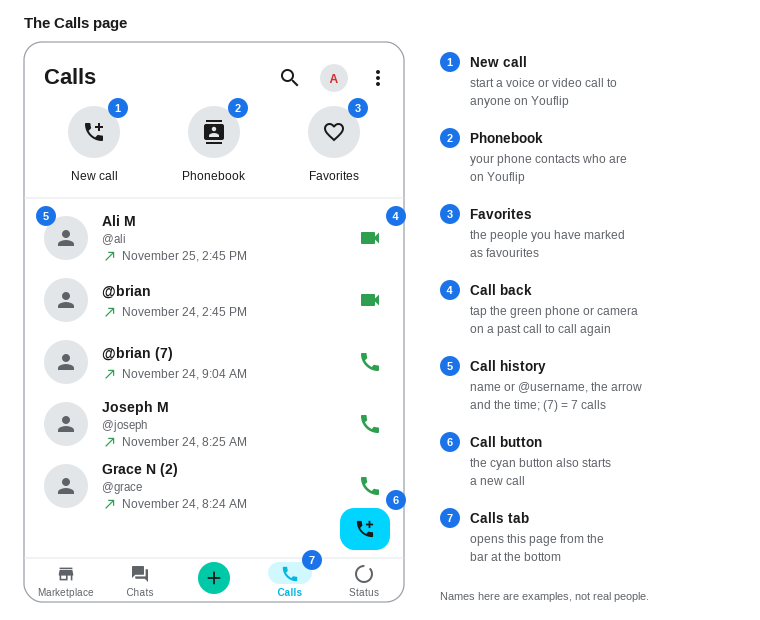
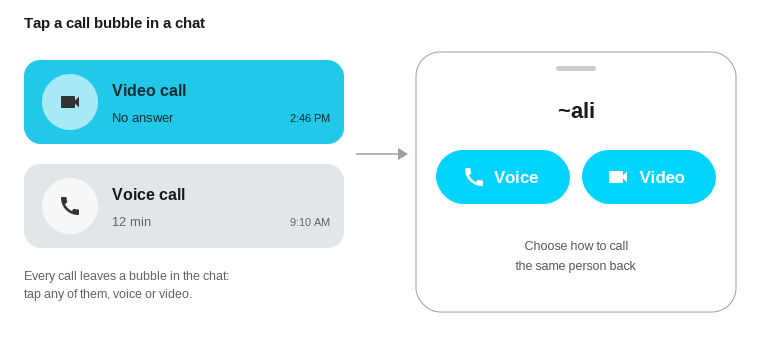
The names in these pictures are examples, not real people.
The top of a chat is shown in The icons at the top of a chat.